Company updates
More Room to Design, Easier to Keep Current: Meet the New Flyer Design Tool
Last updated
Property flyers and OMs are still one of the hardest-working pieces of collateral in commercial real estate. They go out with every listing, get printed for tours and live on your property websites. But keeping a 15-page Offering Memorandum polished and up to date shouldn’t take an afternoon.
That’s why we rebuilt the Flyer Design Tool. It has a roomier canvas, a more capable editor and a simple way to publish flyers to your website and document portal. Here’s what’s new and how it helps your team.
More room to design
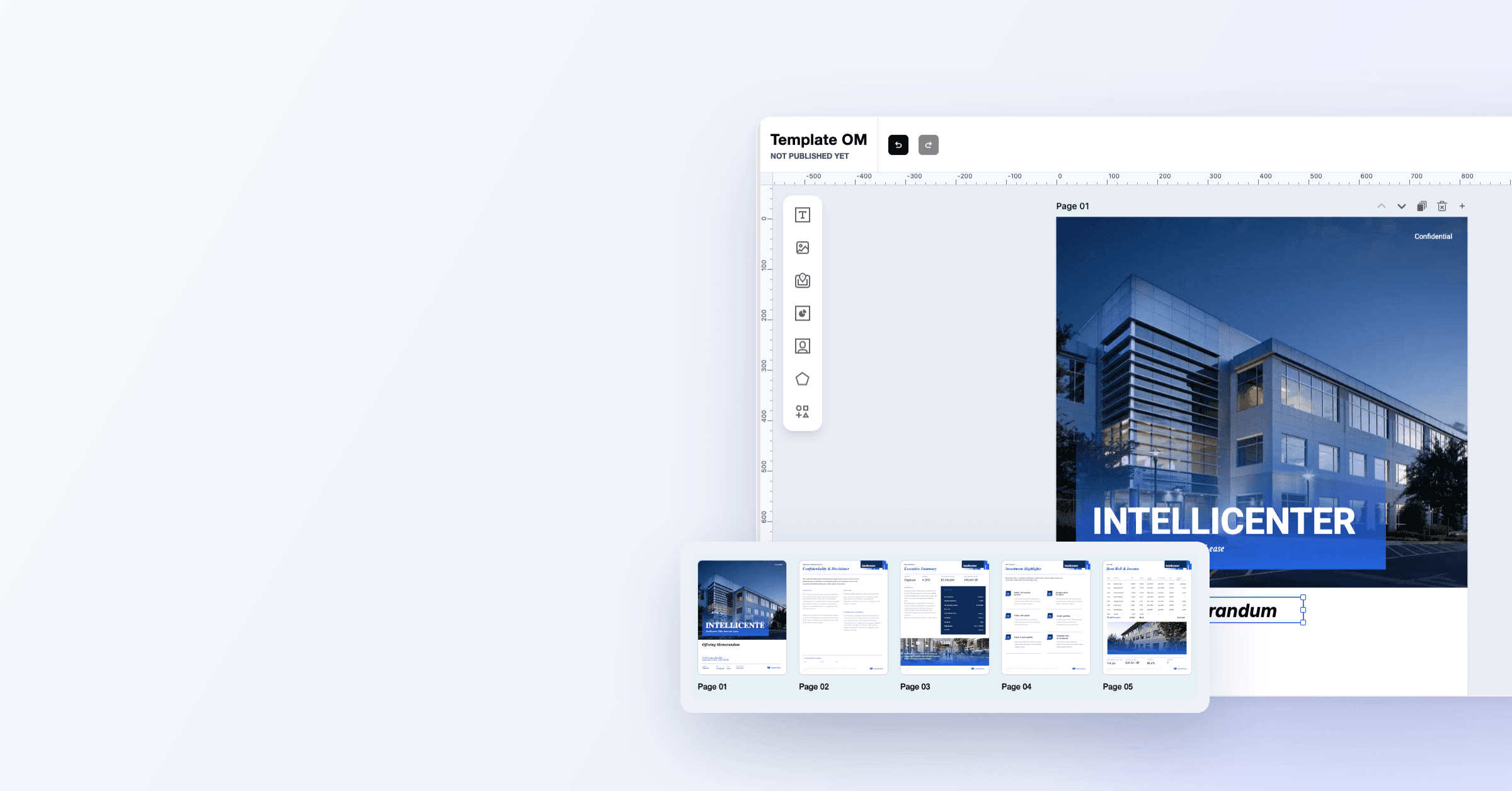
The first thing you’ll notice is space. The old sidebar, with its Content and Pages tabs, is now a slim toolbar on the left that shows only what you add to a page: text, images, maps, data tables, broker info, shapes and icons. The canvas gets the rest of the screen.
Pages now stack vertically, so you scroll through your flyer the way a reader would. Above each page you’ll find quick controls to move it up or down, duplicate it, delete it or add a new page below it.

The new editor: content tools on the left, page controls above each page, and element settings on the right.
Working on a longer offering memo? Select View All Pages to see every page as a thumbnail and drag them into a new order. You can also pull ready-made layouts straight from the page library into your flyer, right where you need them.

View All Pages: see a 15-page offering memorandum at a glance and drag pages into a new order.
Save your best page designs and reuse them
Most teams rebuild the same pages again and again: the confidentiality disclaimer, the advisory team, the market overview. With the Page Designs feature, you build a page once and save it to your page library.
Give it a name your team will recognize, and it’s ready to drop into any flyer or template. You can edit a saved design whenever your branding or details change, and delete the ones you no longer need.
The result is less time rebuilding layouts and more consistent flyers across every listing your team markets.
An editor that works like a design tool
If your team uses design software, the new editor will feel familiar.
- Edit several elements at once. Select a group of elements and change their shared settings in one go, like setting every caption to the same size and colour.
- Line things up precisely. Align and distribute elements evenly, and use rulers and guides to keep margins consistent from page to page.
- Copy, paste and group. Copy elements across pages, paste images straight from your clipboard, drag elements between pages, and group items together with Cmd+G.
- Build tables from data you already have. Choose a table preset with striping and borders, then paste rows straight from Excel or Google Sheets instead of retyping availabilities.
- Zoom faster. Zooming is about 40% quicker, and Fit snaps to the page you’re working on.
Brand control comes along for the ride. Position, size and text-style locks set by your admins stay in place however a flyer is edited, so templates stay on-brand no matter who’s building the flyer.
What you see is what you send
There’s nothing worse than exporting a flyer and finding the formatting has shifted. Text now looks and behaves in the editor exactly as it will in the PDF. Bold, underline and fonts all match, and you can add hyperlinks to any text, so recipients can click straight through to a listing page or a broker’s contact details.
Less lost work
Your flyer now saves automatically as you go. If your browser closes or your connection drops, you can recover your draft when you come back. And if a round of edits doesn’t land, version history lets you browse earlier versions and restore one in a click.
Small things add up too. Click a flyer’s name to rename it, and every PDF export uses your latest changes.
Publish flyers to your website and document portal
Flyers now follow a simple draft-and-publish flow. Select Share in the editor, turn on sharing, and choose where the flyer should appear: your property website’s Downloads section, the document portal, or both.

Publish & Share: choose your document portal folder, your website’s Downloads section, or both.
The best part is what happens next. You can keep refining a live flyer without anyone seeing half-finished changes. Your edits stay in draft, and visitors keep downloading the last published version until you select Publish Changes.
You can also start from the website side. In the Downloads section, Add from PDF Flyers lets you pick a flyer, open it in the editor and publish it from there. When a flyer’s job is done, unpublish it and it’s removed from both places.
Listings that stay current on their own
Price changes. A suite gets leased. In the past, that meant hunting down every flyer that mentioned it.
Flyer elements bound to property data, like price and availability, now update automatically, even on published flyers, with no save or publish needed. Flyers also load the latest property data every time they’re opened. Want to see which parts of a flyer update on their own? Press Cmd+Shift+B to highlight every bound element on the page.
The result is a flyer your team can trust: polished when it goes out, and accurate weeks later.
Getting started
The new Flyer Design Tool is live in your account today. Open any property, select Create Flyer, and take it for a spin.
Questions, or want a quick walkthrough for your team? Reach us anytime at help@sharplaunch.com. We’d love to show you around.
What is SharpLaunch?
SharpLaunch is an all-in-one CRE marketing platform to help you streamline your marketing efforts and modernize your digital presence.
Related Blog Posts
Company updates
SharpLaunch and Dealius Partner to Deliver End-to-End CRE Marketing and Deal Management Platform
The integration connects CRE marketing and transaction management in a single, seamless...
Company updates
What Does a Two-Person Team Actually Need From a CRE Marketing Platform?
If you’re managing CRE marketing for a brokerage, you already know the constraints. A...
Company updates
Stop retyping property data: Meet SharpLaunch AI Property Intake
Before a commercial property can be marketed, someone has to get the data into the...